How to Launch on NFTm
This guide walks a first-time creator on using the Launch Studio to a live store. Screenshots are from the real Launch Studio on NFTm.
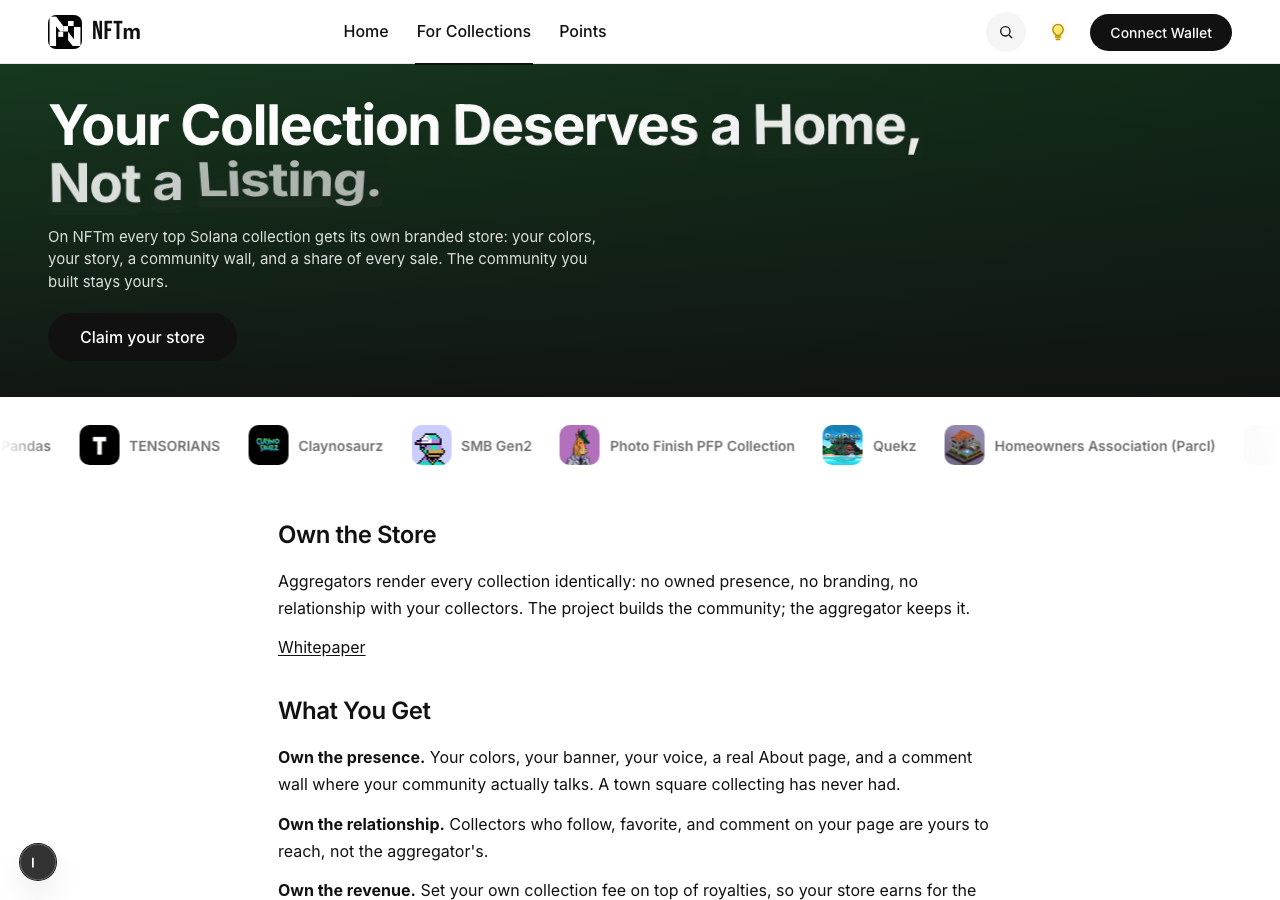
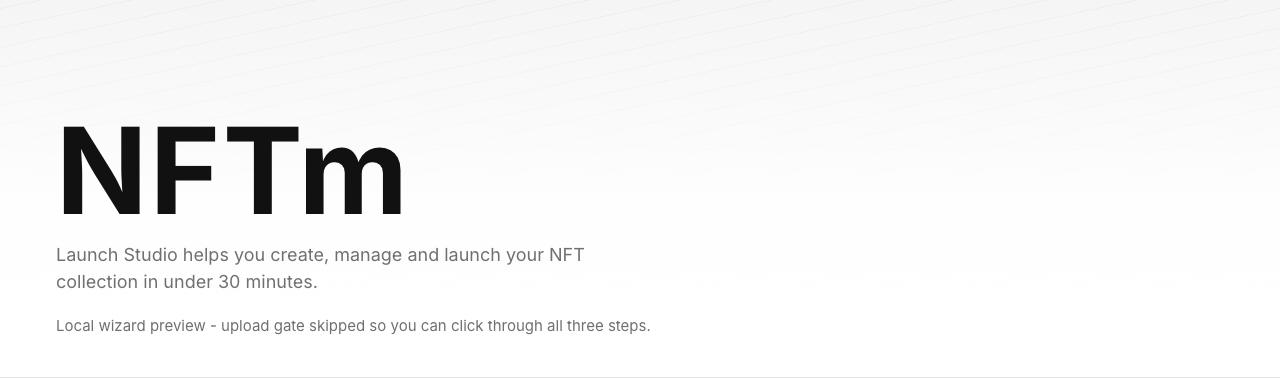
Your Collection Deserves a Home, Not a Listing. NFTm is a marketplace for digital collectibles on Solana. Launch Studio helps you create, manage, and launch a collection in under 30 minutes. Art is stored permanently on Arweave. Mint payments go to the wallets you set. NFTm does not custody mint proceeds.
You will need a Solana wallet (Phantom or similar), enough SOL for on-chain launch (about 0.03 SOL once) plus permanent art upload (about $3 USD, paid in SOL, for a 100-image collection at roughly 300 KB per image; actual cost depends on file sizes), and your images ready (PNG, JPEG, GIF, or WebP). Supply must be between 1 and 25,000 items. Uploading art to Arweave makes the collection truly permanent: it does not depend on a particular hosting solution or on NFTm.
1. How to Get Started
For Collections explains the store model. Launch Studio is where you build the drop.
- Open For Collections and read How to Open a Store.
- Select Launch on NFTm, or go straight to /launch.
- Keep this guide open in another tab while you work: /guides/launch.
2. Connect your wallet
Connect the wallet that will own the store and receive mint payments (unless you set mint fund splits).
- Open Launch Studio (/launch).
- Select Connect Wallet and approve the session message.
- Confirm you are connected to the right Solana wallet.
3. Collection Details
Step 1 is Collection Details: Identity on the left, Economics in the middle and Buyer Summary rail on the right.
- Enter the collection name and optional description.
- Drop a collection logo if you have one (optional, 1 MB or smaller).
- Set supply (whole number from 1 to 25,000).
- Set mint price in SOL (0 is allowed for a free mint).
- Set Price Lock: the maximum mint price buyers will ever see (0 to 1 SOL). Mint price cannot exceed the lock.
- Set royalty % for secondary sales (default 0).
- Set max mints per wallet.
- Optional: Mint Fund Splits (up to 10 wallets; percents must total 100).
- Choose Mint Opens now or a scheduled start; optional mint end date; optional wallet snapshot allow list.
- Select Continue when the form is valid.
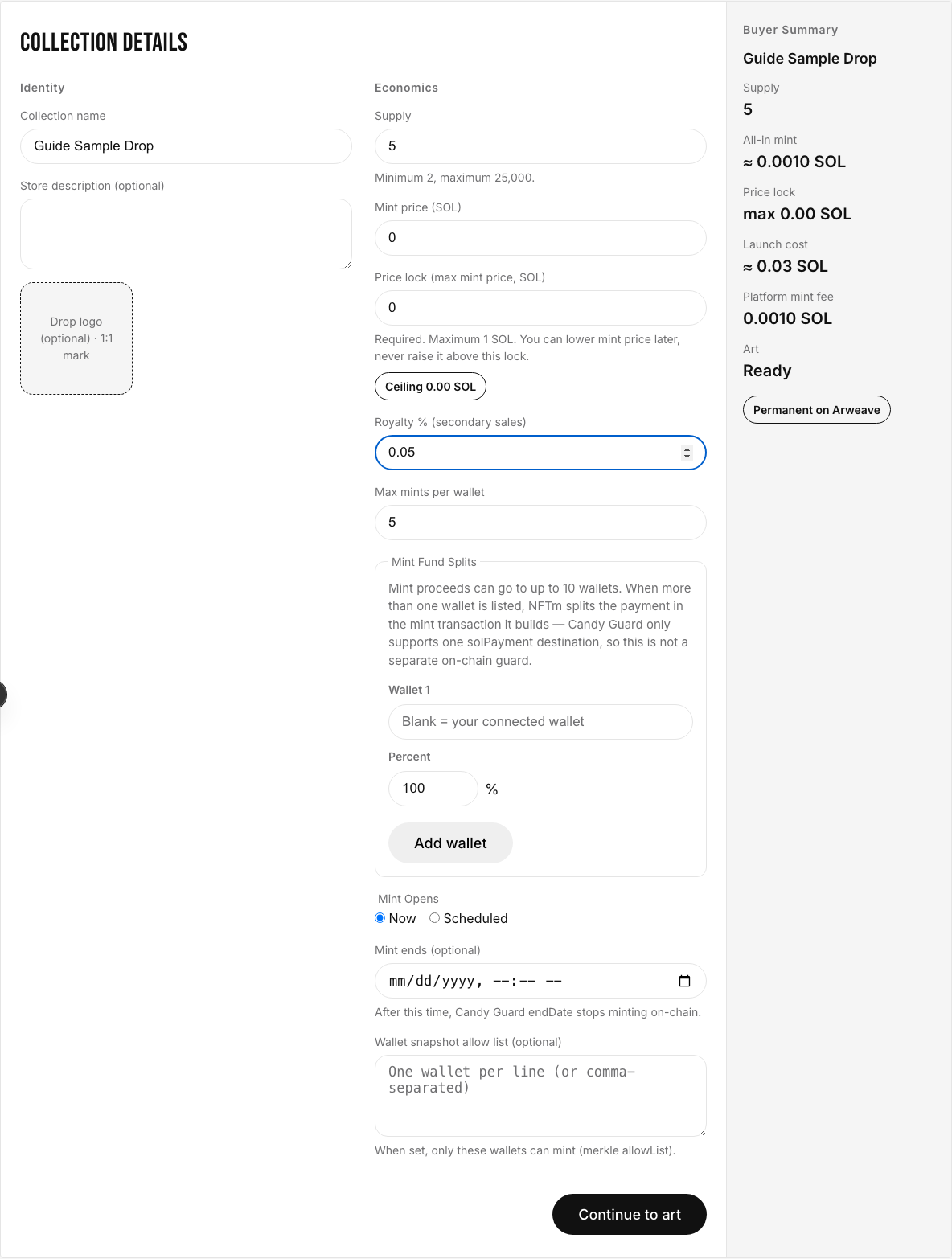
Note. Buyers pay your mint price plus NFTm’s platform mint fee on top: max(0.001 SOL, 1% of mint price). The rail shows all-in mint so you see what collectors pay.
4. Art Studio
Step 2 is Art Studio. You preview how first, middle, and last items look, then upload permanently to Arweave via Irys before the on-chain step.
- Confirm the preview collection name matches your collection name.
- Select all item images (same count as supply). Oversized files auto-compress toward 1 MB.
- Optional but recommended: upload a traits spreadsheet (CSV). Download the sample traits CSV from the page (3 NFTs, 3 traits) as a template.
- Review the sample cards.
- Select Upload permanently and approve the Irys payment in your wallet.
- Wait until the upload shows complete, then Continue.
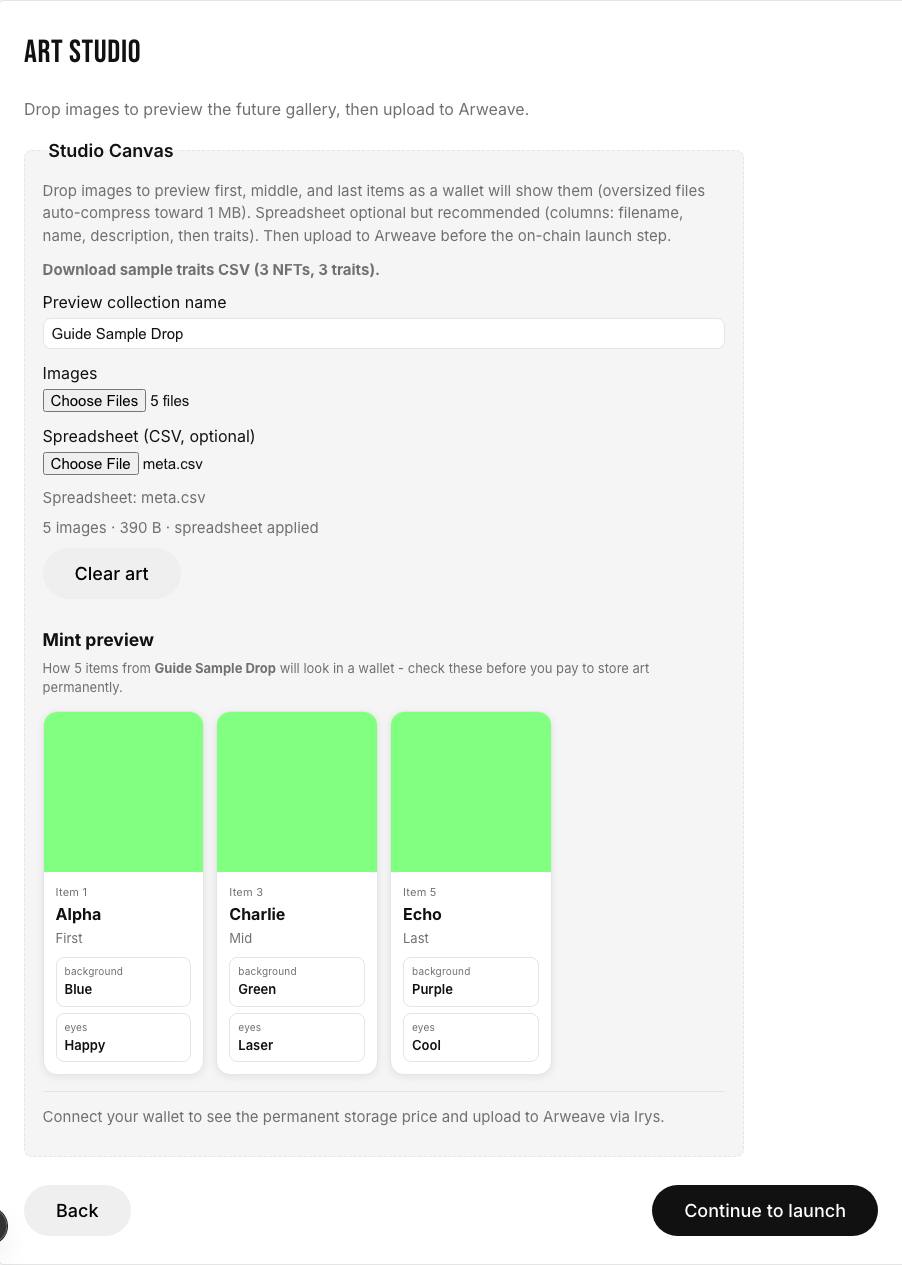
Warning. You cannot launch on-chain until the Arweave upload finishes. If the browser refreshes mid-upload, reopen Launch Studio and resume from the durable upload session when prompted.
5. Launch On-Chain
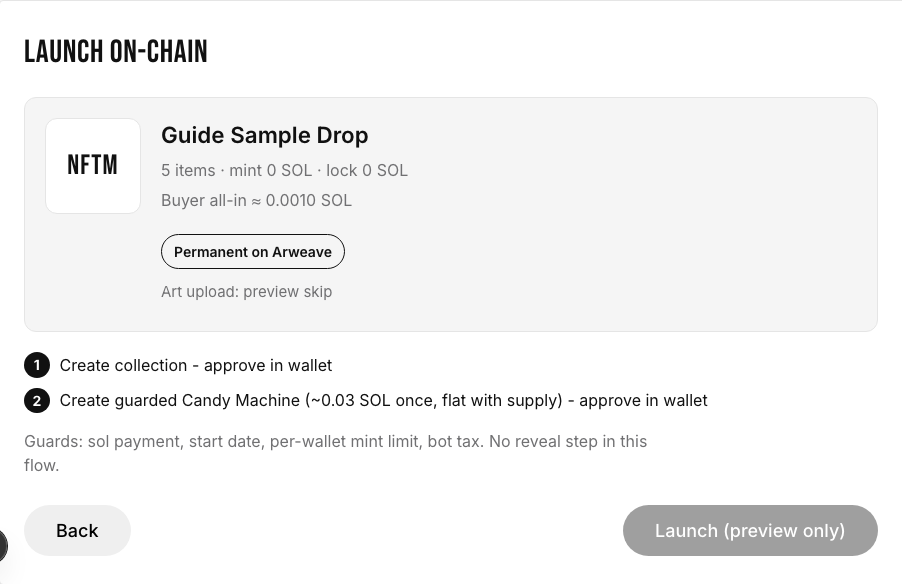
Step 3 reviews your store preview and runs two wallet signs to create the collection. On-chain launch is about 0.03 SOL once (collection + candy machine), not per item. Permanent art upload to Arweave is separate and paid to Irys.
- Read the review and store preview.
- Select Launch on NFTm and approve Create collection in your wallet.
- Approve the second sign to finish the candy machine bind.
- When celebration appears, open Edit your store or View store.
6. After you launch
- New stores stay off home discovery for 24 hours.
- Mint from your collection store; collectors see all-in mint price including the platform fee.
- Brand the storefront from Page Settings (colors, banner, About, comments, fees). Open the Owner Guide from Page Settings when you need those steps.
- A collection with an owner wallet shows a verified check on its gallery. Stores still show who launched them and when.
- Reports and moderation: collectors can report a store; NFTm may unlist under the published SLA.
7. Quick checklist
- Wallet connected; enough SOL for ~0.03 SOL on-chain plus Irys upload.
- Supply 1 to 25,000; mint price ≤ price lock ≤ 1 SOL.
- Images ready; CSV optional but recommended; sample at /launch/nftm-launch-template.csv.
- Art uploaded to Arweave before Launch On-Chain.
- Two wallet approvals complete; open your store and Page Settings.